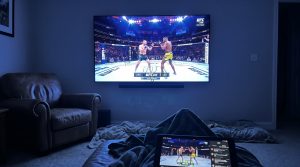

Learning how to install IPTV on Samsung Smart TV opens access to thousands of live channels and on-demand content at a fraction of traditional cable costs. Samsung Smart TVs dominate the global market, making them a popular platform for IPTV streaming. This guide walks you through every step of the installation process, from preparation to optimization, ensuring you get the most from your viewing experience.
What is IPTV and Why Use It on a Samsung Smart TV?
IPTV stands for Internet Protocol Television, a technology that delivers television content through internet connections rather than traditional satellite or cable formats. This modern approach offers viewers unprecedented control over what they watch and when they watch it.
Overview of IPTV
IPTV services provide access to live TV channels, movies, sports events, and series through streaming protocols. Unlike conventional broadcasting, IPTV apps allow you to pause, rewind, and record content seamlessly.
The technology eliminates expensive cable subscriptions while expanding your entertainment options. You gain access to international channels, niche content, and exclusive programming that traditional providers rarely offer.
- Cost efficiency: Significantly lower monthly fees compared to cable packages
- Vast content library: Thousands of channels from around the world
- On-demand flexibility: Watch what you want, whenever you want
- Multiple device support: Stream across TVs, phones, tablets, and computers
Advantages of IPTV on Samsung Smart TV
Samsung Smart TVs run on Tizen OS, a proprietary operating system designed for seamless app integration. The Smart Hub interface provides centralized access to all your streaming services and IPTV apps in one convenient location.
The combination of Samsung’s high-quality displays and IPTV’s flexible content delivery creates an exceptional viewing experience. Features like 4K resolution support, HDR compatibility, and advanced audio processing enhance every stream.
Pro Tip: Samsung’s Smart TV platform integrates perfectly with IPTV subscription services, providing smooth navigation and quick channel switching without lag.
Preparing Your Samsung Smart TV for IPTV Installation
Proper preparation ensures a smooth installation process and prevents common technical issues. Before downloading any IPTV apps, you need to verify your TV’s compatibility and adjust specific settings.
Checking Compatibility
First, confirm your Samsung Smart TV model supports third-party app installation. Press the Home button on your remote and navigate to Settings > Support > About This TV to view your model number and software version.
Most Samsung Smart TVs manufactured after 2016 support IPTV apps through the official app store. However, Samsung periodically removes certain IPTV apps from their store, which may require alternative installation methods like screen mirroring or external streaming devices.
Update your TV’s firmware to the latest version by going to Settings > Support > Software Update > Update Now. This ensures compatibility with the newest app versions and security patches.
| TV Series | Year Range | IPTV App Support |
|---|---|---|
| Samsung J Series | 2015 | Limited |
| Samsung K Series | 2016 | Full Support |
| Samsung M/Q Series | 2017-2019 | Full Support |
| Samsung TU/Q Series | 2020-2024 | Full Support |
Enabling Installation from Unknown Sources
While Samsung’s Tizen OS doesn’t require enabling “unknown sources” like Android devices, you should configure your network settings for optimal IPTV performance. Navigate to Settings > General > Network > Network Status to verify your internet connection.
A stable internet connection with at least 10 Mbps download speed ensures buffer-free streaming. For 4K content, aim for 25 Mbps or higher. Use a wired Ethernet connection when possible for maximum stability.
Try Guru IPTV Free — No Credit Card Needed
Get instant access to 10,000+ channels with our free trial.
Claim Your Free Trial on WhatsAppStep-by-Step Guide to Installing IPTV Using the Smart Hub
The Smart Hub serves as your gateway to all Samsung Smart TV applications. This centralized interface simplifies the process of finding and installing IPTV apps directly on your television.
Accessing the Samsung App Store
Press the Home button on your Samsung remote to launch the Smart Hub interface. You’ll see a row of app icons at the bottom of your screen, including popular streaming services and Samsung’s app store.
Navigate to the Apps icon, which typically displays as a collection of colorful squares. Once inside, you’ll find categories like Video, Sports, Lifestyle, and Entertainment to help organize available applications.
- Launch Smart Hub: Press the Home button on your remote control
- Select Apps: Navigate to the Apps section using directional buttons
- Open Search: Use the magnifying glass icon to search for IPTV apps
- Browse categories: Explore Video and Entertainment sections for IPTV options
Installing and Configuring an IPTV App
In the search bar, type the name of your preferred IPTV app. Popular options include Smart IPTV, SET IPTV, and IPTV Smarters Pro. Select the app from search results and click Install or Download.
After installation completes, open the app and note the activation code or MAC address displayed on screen. You’ll need to visit the app’s website to activate your subscription and link your IPTV service.
For services like Guru IPTV, the setup process is straightforward. Once you receive your subscription credentials, enter them into the app’s login screen. The app will automatically load your channel list and EPG (Electronic Program Guide).
Pro Tip: Save your IPTV playlist URL in a secure location. You’ll need it to restore your service if you reset the app or switch devices.
Among the top-rated options, Guru IPTV stands out for its reliability and extensive channel variety. The service offers seamless integration with Samsung Smart TVs and provides excellent customer support for setup assistance.

Troubleshooting Common IPTV Installation Issues on Samsung TVs
Even with careful preparation, you may encounter technical challenges during IPTV installation. Understanding common problems and their solutions saves time and frustration.
Resolving Compatibility Issues
If your desired IPTV app isn’t available in the Samsung App Store, you have several alternative solutions. Samsung occasionally removes popular IPTV apps from their official store, necessitating workaround methods.
Screen mirroring allows you to cast IPTV content from your smartphone or tablet to your Samsung TV. Enable Screen Mirroring on your TV through Settings > General > External Device Manager > Device Connect Manager.
- Android Box: Connect a dedicated Android streaming device via HDMI
- Amazon Fire Stick: Install IPTV apps on Fire Stick and stream to your TV
- Screen mirroring: Cast from mobile devices supporting Miracast or AirPlay
- Browser method: Use Samsung’s built-in browser to access web-based IPTV players
Fixing App Crashes and Streaming Errors
App crashes often stem from insufficient memory or outdated software. Clear your app cache by navigating to Settings > Support > Device Care > Manage Storage, then select the problematic IPTV app and clear its data.
Buffering issues typically indicate network problems rather than app failures. Test your internet speed using the TV’s built-in browser and visiting a speed test website. If speeds fall below 10 Mbps, contact your internet service provider.
Watch Out: Repeatedly force-stopping apps can corrupt their data. Always try clearing cache first before uninstalling and reinstalling.
Ensuring a Secure IPTV Experience on Your Samsung Smart TV
Security considerations are essential when installing third-party IPTV applications. Protecting your personal information and network should be a top priority throughout the setup process.
Understanding Security Risks
Sideloading apps from unofficial sources exposes your TV to potential malware and security vulnerabilities. Stick to reputable IPTV providers with established track records and positive user reviews.
Unauthorized IPTV services may log your viewing habits, collect personal data, or inject advertisements with tracking scripts. Always research providers thoroughly before entering payment information or personal details.
Implementing Safety Measures
A Virtual Private Network (VPN) encrypts your internet traffic and masks your IP address, adding a layer of privacy to your IPTV streaming. While Samsung TVs don’t natively support VPN apps, you can configure VPN protection at the router level (PureVPN, 2024).
Regular software updates patch security vulnerabilities and improve overall system stability. Enable automatic updates in Settings > Support > Software Update > Auto Update to ensure your TV remains protected.
Pros
- Enhanced privacy protection
- Encrypted data transmission
- Access to geo-restricted content
- Protection from ISP throttling
Cons
- Router-level setup complexity
- Potential speed reduction
- Additional monthly subscription cost
- May not work with all IPTV services
Comparing Popular IPTV Apps for Samsung Smart TV
Selecting the right IPTV app impacts your overall viewing experience. Different applications offer varying features, interface designs, and compatibility levels with Samsung’s Tizen OS.
| App Name | User Interface | EPG Support | Setup Difficulty |
|---|---|---|---|
| Smart IPTV | Simple, minimal | Full support | Easy |
| IPTV Smarters Pro | Modern, feature-rich | Full support | Moderate |
| SET IPTV | Customizable | Full support | Easy |
| Tivimate | Premium design | Advanced features | Complex |
Each app caters to different user preferences and technical skill levels. Smart IPTV offers straightforward functionality perfect for beginners, while IPTV Smarters Pro provides advanced features like catch-up TV and series organization.
Guru IPTV works seamlessly with all major IPTV apps available for Samsung Smart TVs. If you’re unsure which app suits your needs best, contact us on WhatsApp for personalized recommendations based on your viewing preferences.

Tips for Optimizing Your IPTV Streaming Experience
Maximizing your IPTV performance involves fine-tuning both your TV settings and network configuration. Small adjustments can significantly improve picture quality, reduce buffering, and enhance audio clarity.
Enhancing Picture and Sound Quality
Navigate to Settings > Picture > Expert Settings to access advanced display controls. Disable motion smoothing features, as they can introduce artifacts during fast-paced sports or action content.
Set your picture mode to Movie or Filmmaker Mode for accurate color reproduction. These presets disable aggressive image processing that can make streaming content appear artificial or overly sharp.
- Adjust brightness: Set to 45-50 for optimal viewing in normal lighting conditions
- Contrast settings: Keep at 90-95 to maintain detail in dark scenes
- Sharpness reduction: Lower to 0-10 to prevent edge enhancement artifacts
- Sound mode: Select Movie or Amplify for clearer dialogue during streams
Improving Network Performance
Wireless connections introduce latency and packet loss that disrupt IPTV streaming. Connect your Samsung TV directly to your router using an Ethernet cable for the most reliable connection.
If wireless is your only option, ensure your TV connects to your router’s 5GHz band rather than 2.4GHz. The 5GHz frequency offers faster speeds and less interference from neighboring networks.
Pro Tip: Position your router in a central location away from walls and metal objects. This simple change can boost Wi-Fi signal strength by up to 30%.
Why Guru IPTV is a Top Choice for Samsung Smart TV Users
Choosing a reliable IPTV provider makes all the difference in your streaming experience. Guru IPTV has built a reputation for delivering consistent performance and exceptional value to Samsung Smart TV users.
Unique Features and Benefits
Guru IPTV provides access to over 10,000 live channels spanning sports, entertainment, news, and international programming. The service includes premium sports packages, movie channels, and exclusive content not available through traditional cable providers.
The platform features a user-friendly interface specifically optimized for Samsung Smart TVs running Tizen OS. Channel switching happens instantly, with minimal buffering even during peak viewing hours.
99.9% Uptime
Guru IPTV maintains industry-leading reliability with redundant servers
The subscription includes complete EPG integration, showing program schedules up to 7 days in advance. You can set reminders for upcoming shows and access a built-in catch-up feature for content aired within the past 3 days.
Customer Testimonials
Samsung TV owners consistently praise Guru IPTV for its seamless setup process and responsive customer support. The installation takes less than 5 minutes, with clear instructions provided for every step.
Users appreciate the service’s affordable pricing structure, which offers flexible plans starting from monthly subscriptions to annual packages with significant savings. There are no hidden fees, equipment rentals, or surprise charges.
Not sure which plan fits your needs? Reach out on WhatsApp and claim your free trial today to test the service risk-free on your Samsung Smart TV.
Ready to Cut the Cord?
Join thousands of satisfied Guru IPTV subscribers. Start your free trial today — no commitment required.
Contact Us on WhatsAppFinal Thoughts on Installing IPTV on Samsung Smart TV
Installing IPTV on your Samsung Smart TV transforms your entertainment experience by providing unlimited access to global content at affordable prices. The process requires minimal technical knowledge and takes only minutes to complete.
By following this comprehensive guide, you’ve learned how to install IPTV on Samsung Smart TV through the official Smart Hub, troubleshoot common issues, and optimize your setup for maximum performance. Whether you’re streaming live sports, international news, or premium movies, your Samsung TV now serves as a complete entertainment hub.
The key to long-term satisfaction lies in choosing a reputable IPTV provider with reliable servers, extensive channel selection, and responsive customer support. Regular maintenance, such as clearing app cache and updating firmware, ensures continued smooth operation.
Bottom line: With the right IPTV service and proper setup, your Samsung Smart TV becomes an affordable gateway to unlimited entertainment that rivals or exceeds traditional cable packages.