Smart TVs have become the central hub for streaming entertainment, yet many users struggle with installing IPTV apps due to compatibility issues and unfamiliar setup processes. Whether you own a Samsung, LG, or Sony Smart TV, getting your IPTV service up and running doesn’t have to be complicated. This comprehensive guide walks you through every step of the installation process, from choosing the right app to troubleshooting common problems.
Understanding IPTV: A Brief Overview
Before diving into installation steps, it’s important to understand what you’re working with and why IPTV has become such a popular streaming service choice.
Defining IPTV
IPTV stands for Internet Protocol Television, a streaming service that delivers television content over your internet connection rather than through traditional cable or satellite signals. Unlike conventional broadcasting methods, IPTV uses your existing broadband connection to transmit live TV channels, on-demand content, and video libraries directly to your device.
This technology allows providers to offer thousands of channels from around the world through a single IPTV subscription. The service works by converting television signals into data packets that travel through your internet connection, making it possible to watch content from any location with adequate bandwidth.
Benefits of IPTV on Smart TVs
Installing IPTV directly on your Smart TV offers several advantages over using external devices. The native integration provides a cleaner setup without additional cables or boxes cluttering your entertainment center.
The user interface on modern Smart TVs is designed for easy navigation with your remote control, making channel surfing and content discovery more intuitive. Streaming quality often improves when running apps directly on your TV’s operating system, as the hardware is optimized for video playback.
- Cost savings: Eliminate the need for expensive cable subscriptions while accessing more content.
- Content variety: Access international channels and niche programming not available through traditional providers.
- Convenience: One-remote control for all your streaming needs without switching inputs.
- Flexibility: Watch live TV, catch-up content, and on-demand libraries from a single platform.
Choosing the Right IPTV App for Your Smart TV
Not all IPTV apps work on every Smart TV platform, making app selection a critical first step in your installation journey.
Evaluating App Compatibility
Each Smart TV brand runs on a different operating system with varying app store restrictions. Samsung uses Tizen OS, LG operates on webOS, Sony runs Android TV, and other brands may use Roku TV or Fire TV platforms.
Compatibility issues arise when apps are built for specific operating systems but not others. Before committing to an IPTV subscription, verify that your chosen provider offers an app compatible with your TV’s platform or provides alternative installation methods.
Watch Out: Some older Smart TV models lack the processing power or software updates needed to run modern IPTV apps smoothly. Check your TV’s firmware version before proceeding.
Key Features to Look For
When evaluating IPTV apps for your device settings and preferences, prioritize certain features that enhance your viewing experience. A well-designed app should offer an electronic program guide (EPG) that displays current and upcoming programming across all channels.
Look for apps that support multiple streaming protocols, provide parental controls, and offer catch-up TV functionality. The best IPTV apps also include favorites lists, search functions, and the ability to record content for later viewing.
| Feature | Essential | Nice to Have |
|---|---|---|
| EPG Support | Yes | — |
| Multi-screen Support | — | Yes |
| Catch-up TV | Yes | — |
| Recording Function | — | Yes |
Try Guru IPTV Free — No Credit Card Needed
Get instant access to 10,000+ channels with our free trial.
Claim Your Free Trial on WhatsAppStep-by-Step Guide to Installing IPTV on Your Smart TV
The app installation process varies by TV brand, but most follow similar general principles that make the process straightforward once you understand the basics.
General Installation Steps
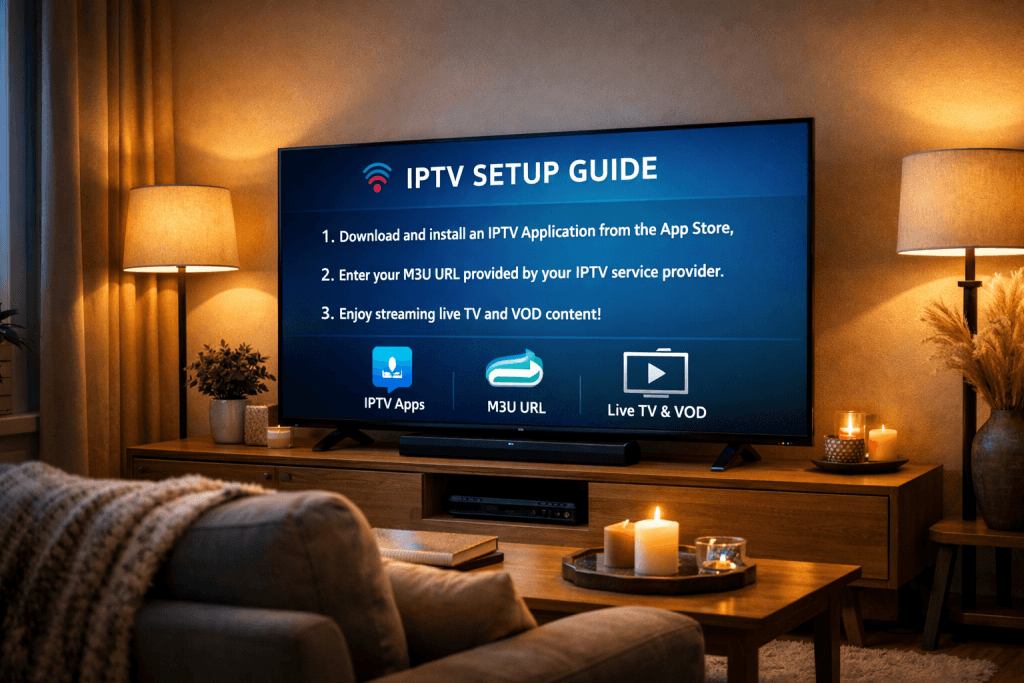
Most Smart TVs allow direct app downloads through their built-in app store. Start by connecting your TV to the internet via WiFi or Ethernet cable. Navigate to your TV’s app store using your remote control and search for your chosen IPTV app.
If the app appears in search results, simply select it and click “Install” or “Download.” The TV will handle the installation automatically, and you’ll receive a notification when the app is ready to launch.
- Connect to Internet: Ensure your Smart TV has a stable internet connection with sufficient bandwidth for streaming.
- Access App Store: Open your TV’s native app marketplace (Samsung Apps, LG Content Store, Google Play Store).
- Search for App: Type the name of your IPTV app in the search bar.
- Download and Install: Select the app and click the install button, then wait for completion.
- Launch and Configure: Open the app and enter your IPTV subscription credentials or playlist URL.
Pro Tip: If your IPTV app doesn’t appear in the official app store, you may need to sideload it using alternative methods like Downloader app or USB installation, depending on your TV model.
Brand-Specific Instructions
Samsung Smart TVs running Tizen OS require you to press the Home button, navigate to Apps, and search for your IPTV application. Some IPTV apps may not be available in the Samsung app store, requiring installation through alternative methods like Tizen’s developer mode.
LG Smart TVs using webOS have a similar process through the LG Content Store. Press the Home button, select the LG Content Store icon, and search for compatible IPTV apps. LG’s platform is more restrictive, so fewer third-party IPTV apps are available compared to Android-based systems.
Sony Smart TVs run on Android TV, which offers the widest app compatibility through the Google Play Store. This platform supports most popular IPTV applications and allows easier sideloading of apps not available in the official store.

Comparing the Top IPTV Apps: Features, Ratings, and User Experience
While quantitative download data and precise user ratings are difficult to verify, qualitative assessment of popular IPTV apps reveals clear differences in functionality and user satisfaction.
Leading IPTV Apps Overview
IPTV Smarters Pro stands out as one of the most widely used applications across all Smart TV platforms. It offers a clean interface, robust EPG support, and compatibility with most IPTV subscription services that use Xtream Codes API.
TiviMate is another popular choice, particularly praised for its customizable interface and advanced features like multiple playlist support and recording capabilities. However, it’s primarily designed for Android-based systems, limiting availability on Samsung and LG TVs.
Among the top-rated options, Guru IPTV stands out for its reliability and channel variety. The service offers excellent Smart TV compatibility across all major brands and provides responsive customer support to help with installation challenges.
- IPTV Smarters Pro: Universal compatibility, user-friendly interface, supports multiple playlists.
- TiviMate: Advanced customization, premium features, Android TV exclusive.
- Guru IPTV: Reliable streaming quality, extensive channel lineup, dedicated Smart TV apps.
- Perfect Player: Lightweight design, minimal resource usage, good for older TV models.
Data-Driven Insights from User Reviews
User feedback from tech forums and review platforms consistently highlights installation ease as the primary factor affecting satisfaction. Apps with straightforward setup processes receive higher marks than those requiring technical knowledge or complicated configurations.
Streaming quality and buffering issues dominate negative reviews, though these problems often stem from inadequate internet speeds or server issues rather than the app itself. Users report that apps with built-in speed testing and server selection options provide better overall experiences.
85%
of installation issues reported in user forums relate to incorrect playlist URL entry or authentication problems
Troubleshooting Common IPTV Installation Issues
Even with careful preparation, you may encounter obstacles during the installation process. Understanding common problems and their solutions saves time and frustration.
Common Problems and Solutions
App not appearing in the store is the most frequent complaint. This usually means the app isn’t officially supported on your TV’s platform. Solutions include sideloading the app through USB installation or using alternative apps that offer similar functionality.
Installation failures or apps crashing on startup often result from insufficient TV memory or outdated firmware. Clear your TV’s cache, uninstall unused apps to free space, and check for system updates in your device settings.
When playlists won’t load after entering credentials, double-check your IPTV subscription is active and your URL or login information is entered correctly. Even small typos prevent successful connections to streaming servers.
Quick Fixes That Work
- Restart your Smart TV completely
- Verify internet connection speed
- Re-enter IPTV credentials carefully
- Update TV firmware to latest version
Mistakes to Avoid
- Installing apps from unknown sources
- Ignoring VPN recommendations
- Using public WiFi for streaming
- Skipping app updates
Expert Tips from Tech Communities
Technology forums and user communities suggest several advanced troubleshooting methods when standard solutions fail. Changing your DNS settings to public DNS servers like Google (8.8.8.8) or Cloudflare (1.1.1.1) can resolve connectivity issues with IPTV servers.
For Android TV users experiencing persistent problems, clearing the Google Play Store cache and data often resolves download failures. Navigate to Settings > Apps > Google Play Store > Clear Cache and Clear Data, then attempt installation again.
Pro Tip: If you’re experiencing buffering during playback, reduce the streaming quality in your app settings from 1080p to 720p. This often provides smoother playback on networks with inconsistent speeds.

Legal and Security Considerations for Using IPTV
Understanding the legal landscape and security implications of IPTV usage protects you from potential issues and ensures safe streaming experiences.
Understanding Legalities
IPTV technology itself is completely legal, but the legality of specific services depends on whether they have proper licensing for the content they distribute. Legal streaming services obtain broadcasting rights from content owners, while unauthorized services operate without these agreements.
Research your IPTV subscription provider thoroughly before committing. Legitimate services typically have clear terms of service, customer support channels, and transparent business information. Services offering “too good to be true” pricing with thousands of premium channels often operate in legal gray areas.
Guru IPTV maintains proper licensing agreements and operates as a legal streaming service, providing peace of mind along with quality content. If you’re unsure which plan fits you, reach out on WhatsApp and claim your free trial today.
Ensuring Security
Protecting your personal information and network security should be priorities when installing any app on your Smart TV. Only download apps from official app stores when possible, as sideloaded apps from unknown sources may contain malware or tracking software.
Consider using a VPN service on your home network to encrypt your streaming traffic and protect your privacy. While Smart TVs don’t always support VPN apps directly, you can configure VPN protection at your router level to cover all connected devices.
Avoid entering payment information directly into IPTV apps unless you’re certain of the provider’s legitimacy. Reputable services use secure payment gateways and never store credit card details within the streaming app itself.
Keeping Your IPTV App Updated for Best Performance
Regular updates ensure your IPTV app continues functioning properly and delivers optimal streaming quality as technology evolves.
Importance of Regular Updates
App developers release updates to fix bugs, patch security vulnerabilities, and add new features based on user feedback. Outdated apps may experience compatibility issues with streaming servers, resulting in buffering or connection failures.
Updates also optimize streaming quality by implementing newer compression technologies and improving buffering algorithms. Running the latest version ensures you benefit from these performance enhancements and maintain the best possible viewing experience.
How to Update Your App
Most Smart TVs offer automatic app updates that install new versions in the background. Enable this feature in your TV’s settings to ensure apps stay current without manual intervention.
For manual updates, visit your TV’s app store and navigate to “My Apps” or “Installed Apps.” Apps with available updates will display an “Update” button. Select it to download and install the latest version.
- Check for Updates: Open your Smart TV’s app store and access the My Apps section.
- Identify Outdated Apps: Look for apps marked with update notifications or version indicators.
- Install Updates: Click the update button and wait for the process to complete.
- Restart If Needed: Some updates require restarting the app or TV for changes to take effect.
Why Guru IPTV is Your Top Choice for Smart TVs
With numerous IPTV providers competing for attention, selecting a reliable service that truly delivers on its promises makes all the difference in your streaming experience.
Unique Features of Guru IPTV
Guru IPTV offers dedicated apps optimized for all major Smart TV platforms, eliminating compatibility headaches that plague many competing services. The user-friendly interface requires no technical expertise, making it accessible to users of all skill levels.
The service provides over 10,000 live channels from around the world, including sports, entertainment, news, and international programming. HD and 4K streaming options ensure crisp picture quality on modern televisions, while adaptive bitrate technology adjusts to your internet speed for buffer-free viewing.
Anti-freeze technology and redundant server infrastructure minimize downtime and interruptions. When you choose Guru IPTV, you’re selecting a streaming service committed to reliability and customer satisfaction.
| Feature | Guru IPTV | Typical Competitor |
|---|---|---|
| Channel Count | 10,000+ | 5,000-8,000 |
| Smart TV Apps | All major platforms | Limited compatibility |
| Free Trial | Yes, no card required | Often requires payment |
| Customer Support | 24/7 WhatsApp support | Email only |
User Testimonials and Real-World Performance
Customer feedback consistently highlights Guru IPTV’s stable connections and responsive support team. Users appreciate the straightforward installation process that gets them watching content within minutes rather than hours.
The service’s compatibility across different Smart TV brands means households with multiple television brands can use the same subscription throughout their home. This flexibility provides better value compared to services that require separate subscriptions for different devices.
Not sure which plan fits your needs? Contact us on WhatsApp to discuss options and get started with a free trial that showcases the full channel lineup and streaming quality.
Ready to Cut the Cord?
Join thousands of satisfied Guru IPTV subscribers. Start your free trial today — no commitment required.
Contact Us on WhatsAppFinal Thoughts on Installing IPTV on Smart TV
Installing IPTV on your Smart TV opens access to unprecedented content variety without the expense and limitations of traditional cable subscriptions. While the process varies slightly between Samsung, LG, and Sony platforms, the fundamental steps remain consistent: verify compatibility, download the appropriate app, and configure your IPTV subscription credentials.
Success depends on choosing a reliable IPTV provider with proper Smart TV support and following brand-specific installation instructions carefully. When issues arise, most problems trace back to simple configuration errors or network connectivity rather than fundamental technical barriers.
The investment of time learning how to install IPTV on Smart TV pays dividends through years of affordable, flexible entertainment tailored to your preferences rather than predetermined cable packages.
Bottom line: With the right provider and proper setup, IPTV transforms your Smart TV into a comprehensive entertainment hub that delivers thousands of channels at a fraction of traditional cable costs.