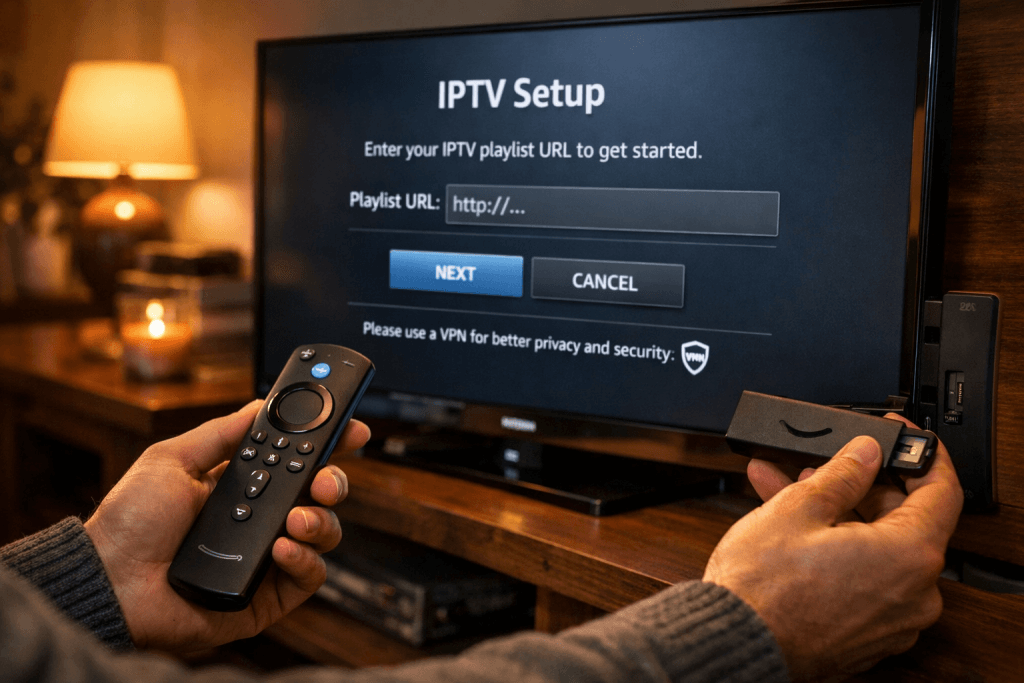
Setting up IPTV on Firestick transforms your streaming experience by giving you access to thousands of live channels and on-demand content at a fraction of traditional cable costs. Whether you’re new to IPTV services or switching providers, the Firestick platform offers one of the simplest and most accessible ways to enjoy internet-based television. This guide walks you through every step needed to get your IPTV subscription running smoothly on your Firestick device.
Understanding IPTV and Its Benefits on Firestick
Before diving into the setup process, it’s important to understand what IPTV actually is and why the Firestick has become such a popular device for accessing these services.
What is IPTV?
IPTV stands for Internet Protocol Television, which delivers television content through internet connections rather than traditional satellite or cable formats. Think of it as streaming your favorite TV channels the same way you stream Netflix or YouTube, but with live television and sports programming included.
Unlike conventional broadcasting methods, IPTV gives you more control over what you watch and when you watch it. Most IPTV service subscriptions offer features like pause, rewind, and replay on live content, plus extensive on-demand libraries.
Benefits of IPTV on Firestick
The Amazon Firestick has become the go-to device for IPTV users for several compelling reasons. Its compact design means you can take it anywhere, plugging it into any TV with an HDMI port to access your full channel lineup.
The user-friendly interface makes navigating between apps and channels effortless, even for those who aren’t particularly tech-savvy. Additionally, the Firestick’s affordable price point makes it an accessible entry point for cord-cutters looking to explore IPTV options.
- Portability: Take your entire channel lineup wherever you travel
- Affordability: Lower upfront cost compared to smart TVs or cable boxes
- Easy navigation: Intuitive interface designed for quick channel surfing
- App compatibility: Supports all major IPTV applications and players
Preparing Your Firestick for IPTV Installation
Proper preparation ensures a smooth installation process and prevents common setup errors that can frustrate new users.
Setting Up Your Firestick
Start by connecting your Firestick to your TV’s HDMI port and powering it on. Follow the on-screen prompts to connect to your Wi-Fi network, ensuring you’re using a stable connection with adequate bandwidth for streaming.
For optimal performance, your internet connection should provide at least 10 Mbps for standard definition content and 25 Mbps or higher for HD and 4K streams. Position your router closer to your Firestick or consider using a Wi-Fi extender if you experience buffering issues.
- Connect to power: Plug the Firestick into a power outlet using the included adapter
- Select your language: Choose your preferred interface language from the menu
- Connect to Wi-Fi: Select your network and enter the password
- Sign in to Amazon: Use your Amazon account credentials to activate the device
Enabling Unknown Sources
Most IPTV apps aren’t available in the official Amazon App Store, so you’ll need to enable installation from unknown sources. This is a standard security setting that prevents unauthorized apps from being installed without your permission.
Navigate to Settings, then select My Fire TV, followed by Developer Options. Here you’ll find the option to enable Apps from Unknown Sources. Toggle this setting on to allow third-party IPTV app installations.
Watch Out: Only download IPTV apps from trusted sources to avoid security risks. Stick to well-known apps and verified download links from reputable IPTV providers.
Try Guru IPTV Free — No Credit Card Needed
Get instant access to 10,000+ channels with our free trial.
Claim Your Free Trial on WhatsAppStep-by-Step Guide to Setting Up IPTV on Firestick
Now that your Firestick is prepared, you’re ready to install and configure your IPTV application. This section covers the complete installation process from start to finish.
Downloading and Installing IPTV Apps
The Downloader app is the most popular tool for installing IPTV applications on Firestick. Search for “Downloader” in the Amazon App Store and install it on your device. Once installed, open the app and you’ll see a simple URL entry field.
Popular IPTV apps like IPTV Smarters Pro, TiviMate, and Perfect Player can be downloaded directly through their APK files. Enter the download URL provided by your IPTV service provider into the Downloader app’s address bar.
Among the top-rated options, Guru IPTV stands out for its reliability and extensive channel variety. The service provides straightforward installation instructions and dedicated support for Firestick users. For more information on pricing, visit our Guru IPTV Pricing Plans.
- Open Downloader: Launch the app and accept any permission requests
- Enter the URL: Type or paste the APK download link provided by your IPTV provider
- Download the file: Wait for the APK file to download completely
- Install the app: Click Install when prompted and wait for completion
- Delete the APK: Remove the installation file to free up storage space
| IPTV App | Best For | Ease of Use |
|---|---|---|
| IPTV Smarters Pro | Beginners and general use | Very Easy |
| TiviMate | Advanced users and customization | Moderate |
| Perfect Player | EPG features and recording | Moderate |
Configuring IPTV Apps
After installation, you’ll need to configure your IPTV app with the login credentials provided by your service provider. This typically includes an M3U URL or Xtream Codes API login details.
Open your newly installed IPTV app and select the option to add a new playlist or login. If using Xtream Codes, you’ll enter your username, password, and server URL. For M3U playlists, you’ll paste the playlist URL directly into the designated field.
Guru IPTV provides clear activation instructions and offers a free trial so you can test the service before committing. Contact us on WhatsApp to receive your login credentials and get started within minutes.
Pro Tip: Save your login credentials in a secure notes app on your phone for easy access when setting up IPTV on multiple devices.
Optimizing Streaming Quality
Getting the best picture quality from your IPTV service requires optimizing a few key settings within your app and on your Firestick device itself.
Most IPTV apps allow you to adjust the video decoder and player settings. For Firestick devices, the hardware decoder typically provides the best performance and smoothest playback. Enable this option in your app’s settings menu if it’s not already active.
Buffer size settings can significantly impact your viewing experience. If you experience frequent buffering, increase the buffer size to allow more content to preload. Conversely, if you want faster channel switching, reduce the buffer size slightly.
- Use hardware decoding: Enables GPU acceleration for smoother playback
- Adjust buffer settings: Balance between buffering prevention and channel switch speed
- Enable refresh rate matching: Reduces judder in video playback
- Set resolution limits: Cap at 1080p if your internet can’t handle 4K consistently

Troubleshooting Common IPTV Issues on Firestick
Even with proper setup, you may occasionally encounter issues with your IPTV service. Most problems have simple solutions that don’t require technical expertise.
Resolving Connectivity Problems
Connection errors are the most common issue IPTV users face on Firestick. If your app displays a “Cannot connect to server” message, start by checking your internet connection through other apps like YouTube or Netflix.
If other apps work fine but your IPTV app doesn’t connect, the issue likely lies with your login credentials or your provider’s server. Verify that you’ve entered your username, password, and server URL exactly as provided, paying attention to capitalization and special characters.
Restarting your Firestick can resolve temporary glitches. Hold down the Select and Play/Pause buttons simultaneously for five seconds to quickly reboot the device without unplugging it.
| Problem | Likely Cause | Quick Fix |
|---|---|---|
| Buffering | Slow internet or server load | Increase buffer size, restart router |
| Login Failed | Incorrect credentials | Double-check username and password |
| Freezing | App cache buildup | Clear app data and cache |
Improving App Performance
Over time, IPTV apps accumulate cached data that can slow down performance and cause freezing or crashes. Clearing this cache regularly keeps your app running smoothly.
Navigate to Settings, then Applications, and select Manage Installed Applications. Find your IPTV app in the list, select it, and choose Clear Cache. This won’t delete your login information or playlists, just temporary files.
Closing background apps also frees up system resources for better IPTV performance. Press and hold the Home button, then select Apps to see all running applications and force-close any you’re not using.
Legal Considerations and Choosing a Safe IPTV Provider
Understanding the legal landscape surrounding IPTV services helps you make informed decisions and avoid potential issues down the road.
Understanding Legal Risks
IPTV technology itself is completely legal, as it’s simply a method of delivering television content over internet protocols. However, the legality depends entirely on whether the service provider has proper licensing agreements for the content they distribute.
According to PCMag’s IPTV explainer, legitimate IPTV services operate just like traditional cable companies but deliver content through internet connections instead of coaxial cables. The key difference is licensing and content rights.
Users should be aware that accessing copyrighted content without proper licensing could expose them to legal risks depending on their jurisdiction. Always research your provider’s legitimacy and content licensing before subscribing.
Watch Out: If an IPTV service offers thousands of premium channels for an unrealistically low price, it may not have proper licensing agreements in place.
Choosing a Reputable Provider
Selecting a trustworthy IPTV provider protects you from service interruptions, security vulnerabilities, and potential legal complications. Look for providers with established reputations, responsive customer support, and transparent terms of service.
Guru IPTV maintains a strong track record for reliability and customer satisfaction, offering properly licensed content with robust security measures. The service includes dedicated support channels and regular server maintenance to minimize downtime. For a detailed comparison of top providers, check out our Best IPTV Service 2026: Top Providers Reviewed.
Key factors to evaluate when choosing an IPTV provider include server uptime guarantees, channel selection quality over quantity, customer review authenticity, and trial period availability. Not sure which plan fits you? Reach out on WhatsApp and claim your free trial today.
- Server reliability: Look for providers with 99%+ uptime guarantees
- Customer support: Responsive help via multiple channels including WhatsApp
- Payment security: Encrypted payment processing and data protection
- Trial availability: Free trials let you test before committing to a subscription

Enhancing Your IPTV Experience on Firestick
Beyond basic setup, several accessories and features can elevate your IPTV viewing experience to match or exceed traditional cable television.
Additional Accessories for Firestick
The standard Firestick remote works well for basic navigation, but upgrading to the Fire TV remote with voice control adds significant convenience. Voice commands let you search for channels, open apps, and control playback without typing.
An Ethernet adapter provides more stable connectivity than Wi-Fi, especially important for 4K streaming and households with multiple devices competing for bandwidth. The Amazon Ethernet Adapter plugs directly into your Firestick’s micro-USB port.
Pros
- Voice control simplifies navigation
- Ethernet eliminates Wi-Fi interference
- HDMI extenders improve signal quality
- External storage expands app capacity
Cons
- Additional costs for accessories
- Setup complexity increases slightly
- More cables and connections to manage
Exploring Advanced Features
Modern IPTV apps support advanced features that traditional cable boxes can’t match. Multi-view lets you watch multiple channels simultaneously in split-screen mode, perfect for sports fans following several games at once.
Electronic Program Guide (EPG) integration shows detailed scheduling information for all your channels, making it easy to plan viewing and set reminders for upcoming shows. Many providers, including Guru IPTV, offer fully integrated EPG data with their subscriptions.
Pro Tip: Enable parental controls in your IPTV app settings to restrict access to adult content and prevent unauthorized purchases.
Ready to Cut the Cord?
Join thousands of satisfied Guru IPTV subscribers. Start your free trial today — no commitment required.
Contact Us on WhatsAppFinal Thoughts on Setting Up IPTV on Firestick
Learning how to set up IPTV on Firestick opens up a world of entertainment possibilities at a fraction of traditional cable costs. The process takes less than 15 minutes from start to finish, even for complete beginners, and the flexibility you gain makes it well worth the minimal effort required.
By following the steps outlined in this guide—preparing your device, installing your preferred IPTV app, configuring your login credentials, and optimizing your settings—you’ll be streaming thousands of channels in no time. Remember to choose a reputable provider that offers proper support and licensing to ensure the best experience.
Bottom line: Setting up IPTV on Firestick is straightforward, affordable, and provides access to more content than traditional cable while giving you complete control over your viewing experience.